
Why Windows Reinstalls Don't Fix Hardware Problems: The Isolation Audit for Persistent Crashes
Key Takeaways
- A reinstall clears software-level corruption and bad drivers, but it cannot repair a failing component.
- Intermittent hardware faults routinely mimic software errors, which leads to repeated OS reinstalls instead of proper diagnosis.
- The Isolation Audit is a five-step process for systematically ruling out the OS as the source of persistent crashes.
- Key diagnostic steps include Safe Mode and Live-USB checks, component stress testing, BIOS and firmware verification, power and cabling inspection, and thermal checks.
- Presenting tech support with specific diagnostic evidence, rather than crash symptoms alone, keeps troubleshooting focused on the actual fault.
💡 Key Takeaways
- A reinstall clears software-level corruption and bad drivers, but it cannot repair a failing component.
- Intermittent hardware faults routinely mimic software errors, which leads to repeated OS reinstalls instead of proper diagnosis.
- The Isolation Audit is a five-step process for systematically ruling out the OS as the source of persistent crashes.
- Key diagnostic steps include Safe Mode and Live-USB checks, component stress testing, BIOS and firmware verification, power and cabling inspection, and thermal checks.
- Presenting tech support with specific diagnostic evidence, rather than crash symptoms alone, keeps troubleshooting focused on the actual fault.
- A decision framework based on diagnostic results and honest cost-benefit thinking helps you choose between repair, replacement, or professional help.
Why Windows Reinstalls Don't Fix Hardware Problems
- Safe Mode / Live USB check
- RAM / CPU / GPU / storage stress tests
- BIOS / POST and firmware checks
- Power, cabling and PSU verification
- Thermal and mechanical inspection
You reinstall Windows on Friday, the PC behaves on Saturday, then the same crash returns when the machine is under load on Sunday. That sequence feels like progress at first because a clean install removes old drivers, broken updates and software clutter. When the crash survives the rebuild, however, the useful question changes. The operating system may only be the place where a deeper hardware fault shows itself.
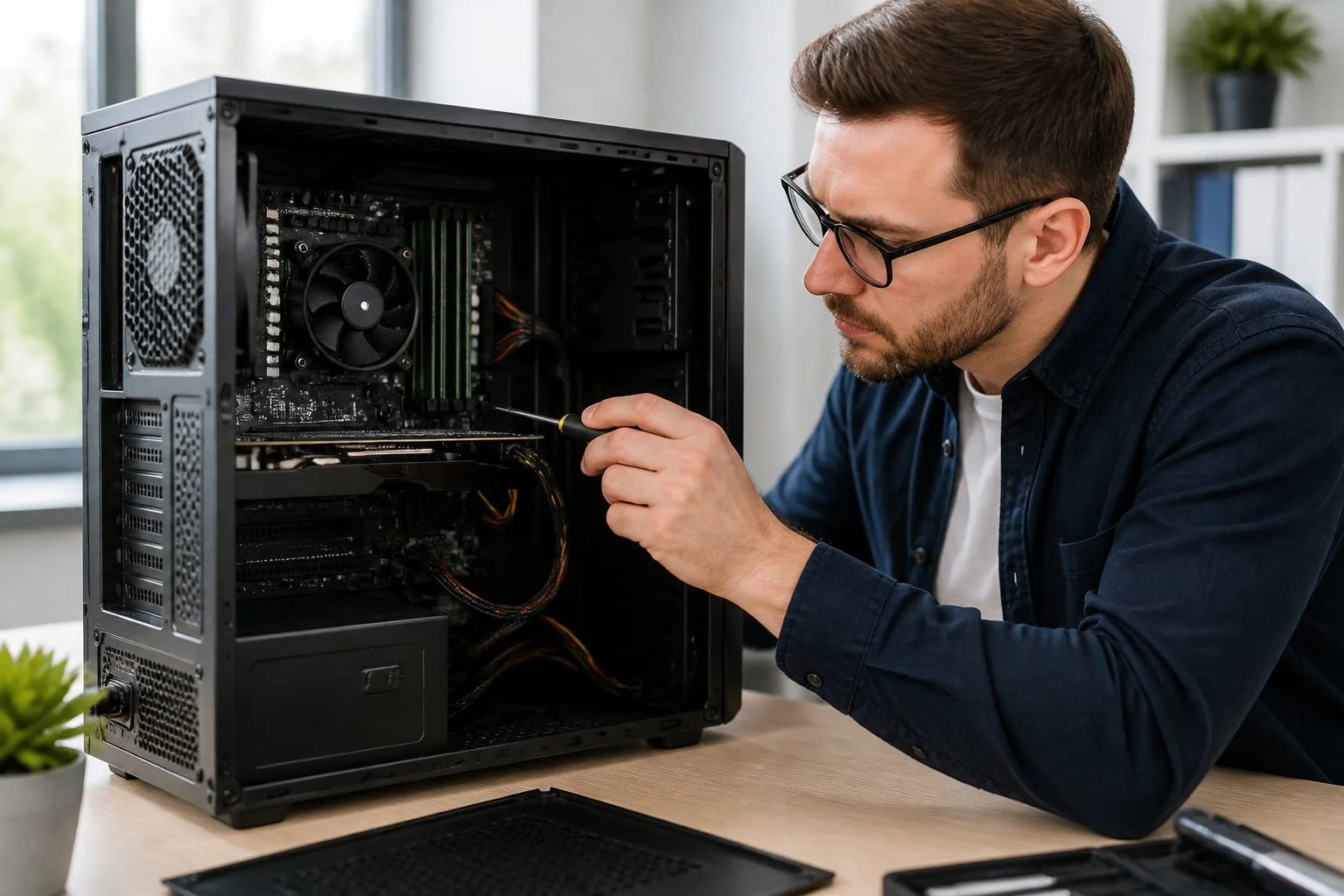
A degraded RAM stick, an unstable PSU, a struggling disk controller, or an intermittent motherboard fault will survive a clean reinstall entirely intact. That is why the same machine can feel fixed for a day, then crash under the same workload once heat, load, vibration, or power draw line up again. The practical lesson is simple: a reinstall can reset software state, but it cannot restore electrical stability.
Consider a machine wiped three times with no improvement. Booting a Linux Live USB produced exactly the same crash. Event Viewer had been logging Kernel-Power 41 throughout, which points firmly at unexpected power loss. Swapping the PSU resolved it immediately. Three reinstalls, zero progress. One component swap, done.
The decision point for repeated crashes is isolation. Booting a known-good Linux environment and reproducing the fault there removes Windows from the equation entirely. If the machine still crashes outside Windows, the next sensible move is component-level diagnosis, not another evening rebuilding the same system image.
Core explanation, The Software Masking Trap
Flaky hardware throws errors that look like software bugs. Call this the Software Masking Trap. You blame Windows because Windows is what you can see, then reinstall it because reinstalling feels like progress. The crash returns because the failing part was never touched.
The mechanism matters. A marginal memory cell can corrupt data mid-execution, producing a blue screen that looks like a driver issue. A degrading capacitor can destabilise power just long enough to reboot the system without leaving a tidy software error. A failing voltage rail can turn a perfectly good process into garbage before Windows has any meaningful chance to explain what happened. The operating system reports the crash, but it did not necessarily cause it.
This is why persistent crashes are so deceptive. Software faults usually have a pattern you can reason about: one application, one driver, one update, one repeatable action. Hardware faults often arrive as noise. They appear during gaming, then during an update, then while idle, then not at all for two days. The apparent randomness is the clue. When the same instability survives different software environments, the OS is no longer the prime suspect.
A few signals suggest the fault is hardware rather than the OS:
- Crashes before the OS loads or during POST
- Same crash when booting a Linux Live USB
- MemTest86 returns non-zero errors
- Random reboots under load with voltage dips
- Persistent visual GPU artefacts or driver timeouts
A better way to think about it is to stop asking, "What should I reinstall next?" and start asking, "At what layer does the failure first appear?" That question is the difference between troubleshooting and ritual.
The Isolation Audit, a five-step system to rule out the OS
The Isolation Audit is a short, repeatable process that establishes whether a fault sits above or below the OS layer. It is not designed to prove a favourite theory. It is designed to remove assumptions one at a time until the failing layer has nowhere left to hide.
BIOS and thermal checks often get skipped in favour of software fixes because software feels safer and more familiar. That is understandable, but it is also how people lose days. The audit treats firmware, power, heat, cabling, memory, storage, CPU and GPU behaviour as part of the same chain. One weak link can make every other part look guilty.
Follow the five steps in sequence and log results as you go. Timestamps, kernel logs, POST codes, temperature readings and voltage observations are far more useful than broad descriptions such as "it crashed again". A crash symptom is a complaint. A timestamped reproduction path is evidence.
This process can feel slower than reinstalling Windows because it asks you to test before acting. That restraint is what saves time. Change three variables at once and you may end up with a working machine, but no idea which change mattered.
Step 1, Safe Mode and Live-USB sanity check
Safe Mode strips out third-party drivers and services. A goes further and removes the Windows layer entirely. The distinction matters: Safe Mode narrows the software field, while a Live USB asks a harder question, does this machine stay stable when Windows is not involved at all?
Boot into Safe Mode and try to reproduce the crash under the same workload. Then boot a Linux Live USB and repeat. Capture kernel logs, timestamps, and any on-screen error codes. A machine that crashes under a Live USB removes Windows from the equation entirely, and saves you from repeating reinstalls that never touch the real problem.
At this point, the argument changes. If the fault follows the machine into another operating environment, you no longer need to debate whether the last Windows update, antivirus suite or graphics driver caused it. You can move the investigation down the stack.
Step 2, Stress the likely points: RAM, CPU, GPU, storage
Intermittent faults often only appear under sustained load. Idle testing rarely provokes them because the system is not drawing enough power, generating enough heat, or moving enough data to expose the weak point. A PC that behaves perfectly on the desktop can still fall apart the moment memory, graphics, storage and power delivery are all under pressure.
- , any non-zero errors indicate a hardware memory fault.
- CPU stress, watch for crashes, thermal throttling, where the processor reduces its speed to avoid overheating, or voltage instability under load.
- GPU load, look for visual artefacts, driver timeouts, sudden black screens, or crashes that arrive only when the card is working hard.
- Disk I/O, sustained sequential and random access should surface read errors, controller instability, or speed throttling.
Run several passes of MemTest86 and let CPU stress run until temperatures stabilise. Log error messages and timestamps throughout. If MemTest86 flags errors, test the suspect modules in different slots or, ideally, in a second machine to confirm. Bad RAM is the classic finding at this stage because its symptoms are so unfairly broad: browser crashes, installer failures, decompression errors, blue screens and game instability can all come from the same failing stick.
The useful result is often not a dramatic crash, but a repeatable pattern. If the GPU fails only under load, if storage errors appear only during sustained writes, or if memory errors follow one module rather than one slot, the problem has stopped being mysterious. Diagnosis is rarely about finding the most advanced tool. It is about finding the smallest repeatable truth.
Step 3, BIOS/firmware and POST health checks
A failing motherboard, BIOS corruption, or incompatible firmware can produce non-deterministic crashes that look exactly like OS faults. A dead CMOS battery, for instance, can cause random reboots that no reinstall would ever fix. It sounds too basic to be responsible for serious instability, which is precisely why it gets missed.
Resetting BIOS to defaults or reading can clarify the fault quickly, eliminating a wide class of firmware and motherboard issues with little effort. Update firmware only if a release explicitly addresses a stability issue you can reproduce, and use a POST card for deeper diagnostics if one is available.
Firmware work has a particular risk. Updating BIOS can fix a known stability issue, but doing it casually on an already unstable system can create a second problem. Defaults first, evidence second, firmware update third is usually the safer order. Experienced troubleshooters eventually realise that "latest" is not the same as "most appropriate".
Many technicians skip the CMOS battery because it feels too simple. That is a mistake. A battery costing less than two pounds has sent more than a few machines through unnecessary OS reinstalls. If the picture is still unclear after this step, a professional diagnostic service can run POST-level and component-level tests with specialist equipment, which is often worth considering before spending money on replacement parts.
Step 4, Power, cabling and connector hygiene
Loose connectors and failing power rails are common, frequently overlooked, and genuinely difficult to distinguish from software faults. Intermittent contact behaves exactly like an unpredictable exception, and the OS has no visibility of it whatsoever. Windows cannot log a connector that briefly stopped behaving like a connector.
A slightly loose SATA or PSU connector is a very ordinary cause of repeated crashes after a clean reinstall. Reseating cables takes ten minutes and costs nothing. Reseat all power and data cables, then test with a known-good PSU if one is available. Use a PSU tester or multimeter to confirm stable voltages under load, and record your readings alongside crash timestamps. If you are not experienced with live-voltage testing, swap in a known-good replacement or arrange professional diagnostics rather than opening the PSU itself.
The practical issue here is trust. People tend to trust anything already plugged in, especially if the machine sometimes boots. That is not enough. A connector can be good at idle and unreliable under heat, movement or load. The best first repair is often not a new part, it is confirming that the existing parts are genuinely seated, powered and stable.
Step 5, Thermal and mechanical inspection
Dried thermal paste, obstructed airflow, and warped coolers can all produce transient crashes under load while the system runs perfectly at idle. Thermal throttling is the key mechanism: when a CPU or GPU overheats, it forcibly slows itself down to avoid damage, which often causes sudden instability or an abrupt shutdown rather than a clean error message.
Remove dust, check cooler alignment, and reapply thermal paste where needed. Run a controlled stress test and correlate any instability with temperature logs and timestamps. If the crashes stop, the thermal system was the culprit. If they continue, the fault lies deeper and the remaining steps in this audit will help locate it.
Where beginners often struggle is distinguishing a cooling problem from a performance problem. A machine may not announce that it is overheating. It may simply become erratic, slow, loud, or suddenly dead under load. The room may still be quiet, but the thermal system is already losing the argument.
Real scripts, Hardware Handshake phrases for tech support
A Hardware Handshake phrase is a concise, evidence-backed statement that signals to support staff you have already ruled out software. This is not about sounding technical for its own sake. It is about preventing the conversation from sliding back to generic advice when you already have evidence that the fault sits below Windows.
Phrase 1: "I have verified this persists across a clean OS install and a Linux Live USB, confirming a POST-level or physical failure." Use this when you have reproduced the fault outside Windows entirely, and include timestamps.
Phrase 2: "The crash occurs specifically under X voltage load, regardless of driver version." Use this when you have PSU or voltage evidence, and attach voltage logs or multimeter readings.
Phrase 3: " returned [X] errors across [Y] passes; the fault is consistent and reproducible." Use this when RAM testing has produced errors, and attach the MemTest86 output file or a screenshot of the error count.
Phrase 4: "POST fails or produces beep code [X] with a benched board and known-good PSU, pointing to a motherboard-level fault." Use this when you have completed a bench test outside the case and can rule out grounding or case-connector issues.
These phrases only carry weight when the evidence actually backs them up. Before contacting support, gather Event Viewer entries, MemTest86 output, and exact reproduction steps with timestamps. It cuts the back-and-forth significantly and gets you to a real hardware diagnosis far faster.
The better question is not "How do I convince support?" It is "What evidence would make the next step obvious?" A good support interaction is less like pleading a case and more like handing over a map.
Tiered diagnostics, starter checks and advanced isolations
Starter checks
These are low-risk, require no specialist tools, and resolve a large share of intermittent faults. Jumping straight to advanced isolation without doing these first is likely to waste time, because a sophisticated test cannot compensate for a loose cable, clogged heatsink or poorly seated memory module.
Work through the physical basics in Step 4 and Step 5 first: reseat power and data cables, clear dust, verify cooler alignment. Then inspect the board visually for bulging or discoloured capacitors and any scorch marks, noting anything unusual before moving on.
This feels backwards if you are used to software troubleshooting. The simple checks feel almost too simple. Yet physical faults do not care how advanced the operating system is, and they often announce themselves through small details: a fan ramping oddly, a plug not quite latched, a RAM stick that clicks more firmly the second time.
Advanced isolations
When the basics do not surface the fault, remove variables methodically. Bench testing the motherboard outside the case eliminates grounding shorts. A POST diagnostics card gives you exact failure codes instead of guesswork. A meaningful number of persistent crash cases come down to grounding issues or a poorly seated standoff, which sounds trivial until it has cost several hours of troubleshooting.
Observe ESD and mains-safety precautions throughout. If you are unsure at any point, stop and seek professional diagnostics. Many independent repair shops can run these tests quickly and at reasonable cost, which is often worth it before committing to component replacements. Record all readings and correlate them with crash or POST-failure timestamps before drawing any conclusions.
The compromise with advanced isolation is that it becomes easier to introduce a new fault while searching for the old one. Static discharge, overtightened screws, mixed modular PSU cables and rushed bench setups can all turn diagnosis into damage. If the machine matters, caution is not hesitation. It is part of the repair.
Common mistakes that waste time
Ignoring coil whine, odd smells, or scorch marks is more common than it should be. Those sensory cues often precede full failure. They are actionable clues, not background noise, and dismissing them simply delays the diagnosis.
Over-tightening coolers and assuming a new part is fault-free are also frequent missteps. A component can fail straight out of the box. Blaming the latest driver update, or reaching for yet another reinstall, only compounds the delay. Log physical cues as soon as you notice them and hold off on further software interventions while evidence is still accumulating.
Being wrong at the start is normal, everyone is sometimes. The costly part is continuing to protect the first theory after the evidence moves elsewhere. Persistent crashes reward discipline, not confidence.
What to gather before you call support
The essentials: Event Viewer and Windows Error Reporting entries, MemTest86 output, for storage, and timestamps for each crash. Photos and short video clips of audible or visible symptoms help considerably, as do any BIOS or firmware POST codes.
Having all of this ready before you contact support meaningfully increases the chance of a correct diagnosis on the first call. Include exact reproduction steps and bench test results, and bundle everything into a single ZIP when you open the ticket.
What support needs is not a long story, it is a clean chain of evidence. "It crashes randomly" invites a script. "It crashes under Live USB after 12 minutes of GPU load, with the same Kernel-Power entries before and after reinstall" changes the conversation immediately.
Decision framework, how to choose repair, replace or professional diagnostics
Map your results to a decision. Consistent MemTest86 failures point to RAM replacement. PSU voltage instability under load, where a rail drops or spikes beyond acceptable tolerances, points to a new power supply. Persistent POST failure after bench testing usually means a motherboard replacement or a full new build. Base the call on artefacts you actually collected, not on driver update history or gut feeling.
A rough rule: if a single replacement part costs more than half the machine's current market value and the system is over five years old, replacing the whole unit is usually the smarter move. Check second-hand listings for a similarly configured machine to get a realistic figure. Chasing parts on an ageing platform rarely works out cheaper in the end, especially if the next weak component is already waiting.
Intermittent faults that do not produce a clean bench failure are where most money gets wasted. Voltage spikes or rail noise without a clear error code are hard to pin down without specialist equipment, and that is when a paid diagnostic session earns its keep. Specialists can trace rail noise with an oscilloscope and spare you several rounds of speculative part swaps. If memory faults remain inconclusive after free testing, MemTest86 Pro offers additional test coverage and more detailed reporting, which can be worthwhile before committing to a replacement.
Professional diagnostics make the most sense when system uptime matters to your business, when testing requires equipment you do not own, or when two or more subsystems are failing intermittently. One accurate diagnosis almost always costs less than the components you would otherwise swap on a hunch. When comparing repair shops, look for those that provide written fault reports with supporting test data rather than verbal estimates alone. Take your crash logs, MemTest86 output, and voltage readings into any conversation with a repair shop, a focused quote based on real artefacts beats a vague estimate every time.
That evidence-driven approach is exactly why Windows reinstalls do not fix hardware problems. A reinstall is worth doing when the evidence points to corrupted software, broken drivers or a compromised system. It is not worth repeating when the same crash survives Safe Mode, Live USB testing, stress tests or POST-level checks. Once the fault follows the machine below the OS layer, isolate the failing component, replace it if the economics make sense, or pay for professional diagnostics before guesswork becomes more expensive than the repair.
Frequently Asked Questions
Why shouldn't I just reinstall Windows to fix persistent crashes?
Reinstalling the OS only clears software faults. If a failing component, such as the CPU, RAM, GPU, storage controller or PSU, is the root cause, the system will keep crashing regardless of how clean the install is. It wastes time and can hide the pattern you need to diagnose the real problem.
What is the "Software Masking Trap"?
It is the pattern where faulty hardware produces errors that look like software problems. The risk is that you keep reinstalling Windows because the symptoms appear inside Windows, while the actual fault sits below the OS layer.
What is the purpose of an Isolation Audit?
It gives you a structured way to decide whether a fault sits above or below the OS layer. Start with Safe Mode and a Live USB, then move through memory, storage, graphics, power, firmware and thermals until the failing subsystem becomes testable.
How can I tell if a crash is a hardware fault using a Live USB?
Boot from a known-good Linux Live USB and repeat the same workload. If the problem still occurs, Windows and its drivers are bypassed, so the next checks should focus on memory, storage, graphics, power, firmware and cooling.
What are "Hardware Handshake" phrases?
They are concise, evidence-backed statements for tech support, for example, "MemTest86 returned errors across three passes". They work best when you can attach logs, screenshots or timestamps, not just a description of the symptom.
When should I consider professional diagnostics?
Consider it when uptime matters, when failures cross several subsystems, or when the next test needs equipment you do not own. Voltage instability, rail noise and complex thermal faults often need specialist tools, and one accurate diagnosis can be cheaper than several speculative part swaps.
Last updated by the editorial team in June 2025.
If crashes survive a clean Windows install, the fault is almost always hardware, and that means proper motherboard-level diagnostics or a RAM and SSD replacement to rule out the usual culprits.
Adrian Wilson
Adrian Wilson is the founder of Plumstead Computer Clinic on Plumstead Common Road, South East London. He has been repairing laptops, PCs and MacBooks professionally since 2012, helping thousands of local homes and businesses fix everything from cracked screens to failed hard drives. He writes here to share honest, practical computer advice.
More about Adrian →