
How to recover files from a dead laptop or failed SSD: a calm, practical roadmap
Key Takeaways
- Most non-boot problems are not caused by a dead drive. Firmware, boot configuration, or connection faults are far more common culprits.
- Work through software-level checks before touching the hardware. Physical handling introduces risks that software checks simply do not.
- Booting from a Live USB lets you access files without modifying the installed operating system.
- Before attempting any repairs on a drive showing errors or intermittent visibility, create a bit-for-bit read-only image of the drive.
- Clicking drives or a burning smell: stop immediately and seek professional recovery.
A black screen is not a death sentence for your data. In most cases, the drive is perfectly intact, and what has failed is the firmware, the boot configuration, or a connector that needs reseating.
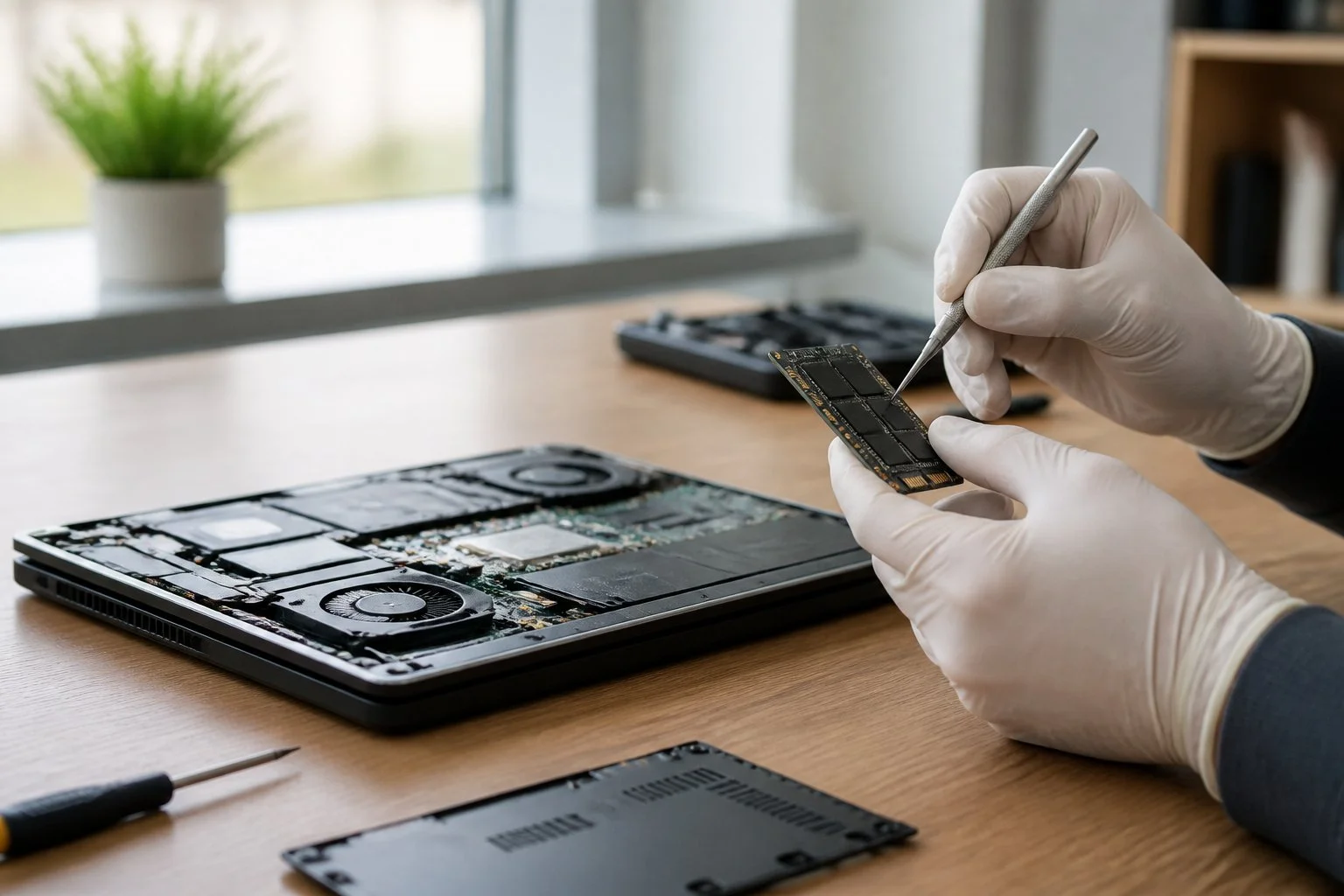
You can recover files from a dead laptop or failed SSD in most cases without touching the hardware.
- Check BIOS/UEFI, is the drive detected?
- If visible or intermittent, attach externally and image the drive first.
- Clicking, burn smell, or irreplaceable data, stop and call a professional data recovery lab.
💡 Key Takeaways
- Most non-boot problems are not caused by a dead drive. Firmware, boot configuration, or connection faults are far more common culprits.
- Work through software-level checks before touching the hardware. Physical handling introduces risks that software checks simply do not.
- Booting from a Live USB lets you access files without modifying the installed operating system.
- Before attempting any repairs on a drive showing errors or intermittent visibility, create a bit-for-bit read-only image of the drive.
- Clicking drives or a burning smell: stop immediately and seek professional recovery.
Why most "dead" laptops still allow file recovery
When a laptop stops booting, the storage is usually intact. The distinction matters more than most people realise, because non-invasive recovery steps work far more often than you might expect, and they cost nothing to try. Reaching straight for a screwdriver, on the other hand, is one of the most common and costly mistakes in DIY recovery.
Start with software. Always.
Core explanation, the Access Hierarchy Loop
The Access Hierarchy Loop is a diagnostic framework built around one discipline: exhaust every safe option before you touch the hardware. It is the organising principle behind every step in this guide.
Removing a drive introduces static discharge, mechanical stress, and connector wear. Any one of those can turn a minor fault into permanent data loss.
The loop works as a cycle rather than a straight checklist because each step prompts a reassessment. Regain read access at any stage and you stop there. If not, you escalate carefully to the next level, repeating until you either retrieve the files or reach the point where professional help becomes the smarter call.
Rapid triage, is the drive visible?
Open the BIOS/UEFI setup and look for the drive. "Visible" means the controller lists a device model or capacity, or for NVMe, the drive appears among PCIe/NVMe devices. Some screens only show "Windows Boot Manager" rather than a device model, but that still confirms detection.
If the drive shows up, note the model and capacity. That tells you the form factor and interface, which you will need later.
If it is not listed, do not assume failure yet. Try a full power drain: switch off, disconnect mains and battery where possible, hold the power button for around 20 seconds, then boot again. Check any ribbon or SATA cables for a loose connection. Loose connectors and a misconfigured boot order are surprisingly common, and fixable in minutes.
If the drive still does not appear, plan for external access via a USB enclosure rather than OS repair.
Non-invasive bypass, using bootable recovery media
Booting from a Live USB bypasses the failed system partition entirely. You get read access to the drive without touching what is on it, which is exactly what you want at this stage. Use this approach whenever triage detects the drive but the OS refuses to load. Practical steps for doing this are covered in the "Safe recovery steps for non-technical users" section below.
When to remove the drive, safe physical extraction
Remove the drive only if BIOS/UEFI and a Live USB both fail to detect it, or if the drive is visible but OS corruption is blocking access. This is a diagnostic escalation, not a starting point.
Use an anti-static wrist strap if you have one. Photograph each step, label screws, and handle connectors by their edges. Do not force ribbon cables or M.2 modules.
If the laptop is under warranty and the data is not urgent, weigh that risk carefully. For important files, a quick extraction and an inexpensive external enclosure is usually the fastest route.
Hardware connectors and buying the right enclosure
Identify the drive's form factor and interface before buying anything. Common types include 2.5" SATA, mSATA, M.2 SATA, and M.2 NVMe (PCIe). The wrong enclosure simply will not work, even if the module appears to fit.
If the BIOS lists an NVMe controller or the drive appears under PCIe devices, you almost certainly have an M.2 NVMe, which is the most common configuration in modern laptops.
For M. Prefer USB 3.x with UASP support, and a thermal pad or heatsink for NVMe drives running extended transfers.
A decent USB 3.x enclosure typically costs £15–£35 (street price at time of writing; regional variation likely). Buying the wrong adapter is the most common time sink in this entire process. Useful search phrases include "USB 3.0 to NVMe enclosure for M.2 2280" or "USB 3.1–2.5 inch SATA adapter". Reviewers frequently cite UGREEN for NVMe enclosures and Inateck for 2.5" SATA as reliable options. Always confirm compatibility with your specific drive model before purchasing.
Safe recovery steps for non-technical users
Start by identifying your drive type, either via BIOS/UEFI or the laptop's spec sheet. Buy the correct external enclosure, connect via USB, and copy files before reaching for any repair tools. This is the least invasive approach, and it should always come first.
Use Live USB recovery if the OS will not boot. You will need an 8 GB or larger USB stick and a verified Ubuntu ISO. Boot from the USB, open a terminal, and run lsblk to list connected drives. Then mount the target with:
sudo mount -o ro /dev/sdXN /mnt/recoveryReplace sdXN with the device node shown by lsblkfor example sdb1. The ro flag mounts the drive read-only, so nothing is written to it during the process.
Once connected, open File Explorer (Windows) or Finder (macOS) and copy critical files to a separate drive. Use copy, not move. Moving risks partial loss if the source drive fails mid-transfer.
Copy first, decline any "repair" prompts. If your OS prompts to "Initialise", "Format", or "Scan and Fix", cancel immediately. Copy first, verify that a handful of files actually open, then decide what to do next. BitLocker and -protected volumes will need your recovery key before anything is accessible.
If no drive letter appears, or transfers slow to a crawl, stop. A marginal drive can go from slow-but-readable to completely unresponsive faster than most people expect. Use the imaging approach below instead.
Advanced workflow: image first, then recover (for failed SSDs and dead laptops)
Image before repair. That is the rule, and it is not negotiable.
Rather than running repairs on the original drive, you create a bit-for-bit copy and work from that instead. handles drives with read errors intelligently, mapping around bad sectors and retrying them later. It is widely used in both open-source and professional lab workflows. Commercial recovery suites offer similar imaging features. Either way, the image comes first.
Two things matter here. Image to a separate physical drive that is at least as large as the source, and do not mount the source read/write while imaging. Both steps preserve the original, so you can attempt recovery more than once without further degrading the drive.
Imaging is not an advanced luxury. It is a basic defensive move.
On SSDs specifically, TRIM reduces the likelihood of recovering deleted files, but it does not prevent imaging the blocks still present. Wear-levelling and controller remapping can complicate forensic recovery on older or heavily used drives. Some NVMe drives also use hardware encryption. If encryption is suspected, treat the situation as higher risk and consider a professional data recovery lab rather than continuing with DIY tools.
Common mistakes and what they cost you
The most damaging moves are repeated power-cycling of a clicking drive, reinstalling the OS onto the same disk, and attempting folklore like the "freezer trick" on modern hardware.
The freezer trick is largely a myth. On SSDs, the fault is usually electronic rather than mechanical, and cold exposure tends to make things worse. It belongs to an earlier era of spinning-disk recovery.
Avoid running chkdsk or fsck on a suspect disk before imaging. Repair operations write to the disk and can overwrite recoverable data in the process.
Clicking, grinding, or any burning smell means stop immediately. Escalate to a professional data recovery lab rather than continuing with DIY attempts.
When to pay for professional recovery: a cost versus benefit decision
A DIY enclosure typically costs £15–£50. Professional lab work is a different order of magnitude, ranging from hundreds into the thousands for mechanical or controller failures. Where your drive sits on that spectrum, from visible via USB all the way to a non-responsive NVMe, should guide that spending decision directly.
Three factors determine the right path: the monetary value of the data, whether it is genuinely irreplaceable, and whether your own attempts have already changed the drive's state.
If the data cannot be recreated, stop DIY work immediately and seek a lab diagnosis before doing anything else. NVMe SSD controller failures are rarely recoverable at home, and even professional labs may achieve only partial results depending on the fault. Software and connection fixes tend to recover files intact; mechanical failures need specialist tooling and realistic expectations.
Technicians report that clients who have already run multiple recovery tools on a clicking drive present the hardest cases. Not because the drive is necessarily worse, but because evidence of what was recoverable is partially overwritten. Every write to the drive narrows your options.
If the drive is visible via USB and the data is routine, DIY is almost always the sensible first step. If the data is irreplaceable and changes have already been made, a professional recovery lab is the better call.
Frequently Asked Questions
My laptop is completely dead, can I still recover data if the drive is not visible in BIOS/UEFI?
If BIOS/UEFI cannot detect the drive, software alone will not help. Remove the drive and connect it via an external enclosure. Absent or intermittent detection usually points to mechanical or controller failure, which is better handled by a professional recovery lab than a home attempt.
Will connecting my drive to another computer via USB damage it or void warranties?
USB connection will not harm the drive. Opening the chassis might void your manufacturer warranty, so check that before reaching for a screwdriver.
Is it safe to try free recovery software, or should I image the drive first?
If the drive is showing errors or behaving erratically, create a bit-for-bit copy first. Free file-carving tools work well on a copy. Running them directly on a failing drive is a gamble, and one that can make recovery harder.
If the drive won't mount or the laptop won't boot at all, a professional data recovery service is the safest next step. Once files are safe, a fresh SSD upgrade makes a good moment to start clean.
Adrian Wilson
Adrian Wilson is the founder of Plumstead Computer Clinic on Plumstead Common Road, South East London. He has been repairing laptops, PCs and MacBooks professionally since 2012, helping thousands of local homes and businesses fix everything from cracked screens to failed hard drives. He writes here to share honest, practical computer advice.
More about Adrian →