
Why Laptops Overheat: The 7 Real Causes We See in the Workshop (Practical Fixes Before You Replace It)
Key Takeaways
- Thermal throttling is when a CPU or GPU deliberately slows down to prevent overheating, protecting hardware at the cost of performance.
- Common laptop overheating causes include dust-clogged heatsinks, failing fans, degraded thermal paste, poor heatsink contact, and blocked intake vents from soft surfaces.
- A 5-step diagnostic flow covers external vents and placement, fan behaviour, runaway applications, thermal paste condition, and voltage rails.
- Not all overheating fixes require professional help; external cleaning, changing laptop placement, and closing heavy applications are useful first steps.
- For persistent overheating where temperatures stay consistently above 90 °C, a professional inspection, clean, and thermal paste replacement are often the most cost-effective solution.
💡 Key Takeaways
- Thermal throttling is when a CPU or GPU deliberately slows down to prevent overheating, protecting hardware at the cost of performance.
- Common laptop overheating causes include dust-clogged heatsinks, failing fans, degraded thermal paste, poor heatsink contact, and blocked intake vents from soft surfaces.
- A 5-step diagnostic flow covers external vents and placement, fan behaviour, runaway applications, thermal paste condition, and voltage rails.
- Not all overheating fixes require professional help; external cleaning, changing laptop placement, and closing heavy applications are useful first steps.
- For persistent overheating where temperatures stay consistently above 90 °C, a professional inspection, clean, and thermal paste replacement are often the most cost-effective solution.
- When contacting a repair shop, request a diagnostic focused on thermal performance and ask for an itemised quote before any work begins.
Cooling pads aren't the cure, here's what actually is
A cooling pad is the laptop equivalent of opening a window when the boiler is broken: it feels productive, but it does nothing about the actual fault. If the vents are clogged, the fan is failing, or the thermal paste has dried to a crumbly residue, blowing marginally cooler air underneath the chassis simply masks the problem while it keeps progressing. Some machines arrive in the workshop having run on a cooling pad for months, throttling worse with every passing week, because nobody looked inside.
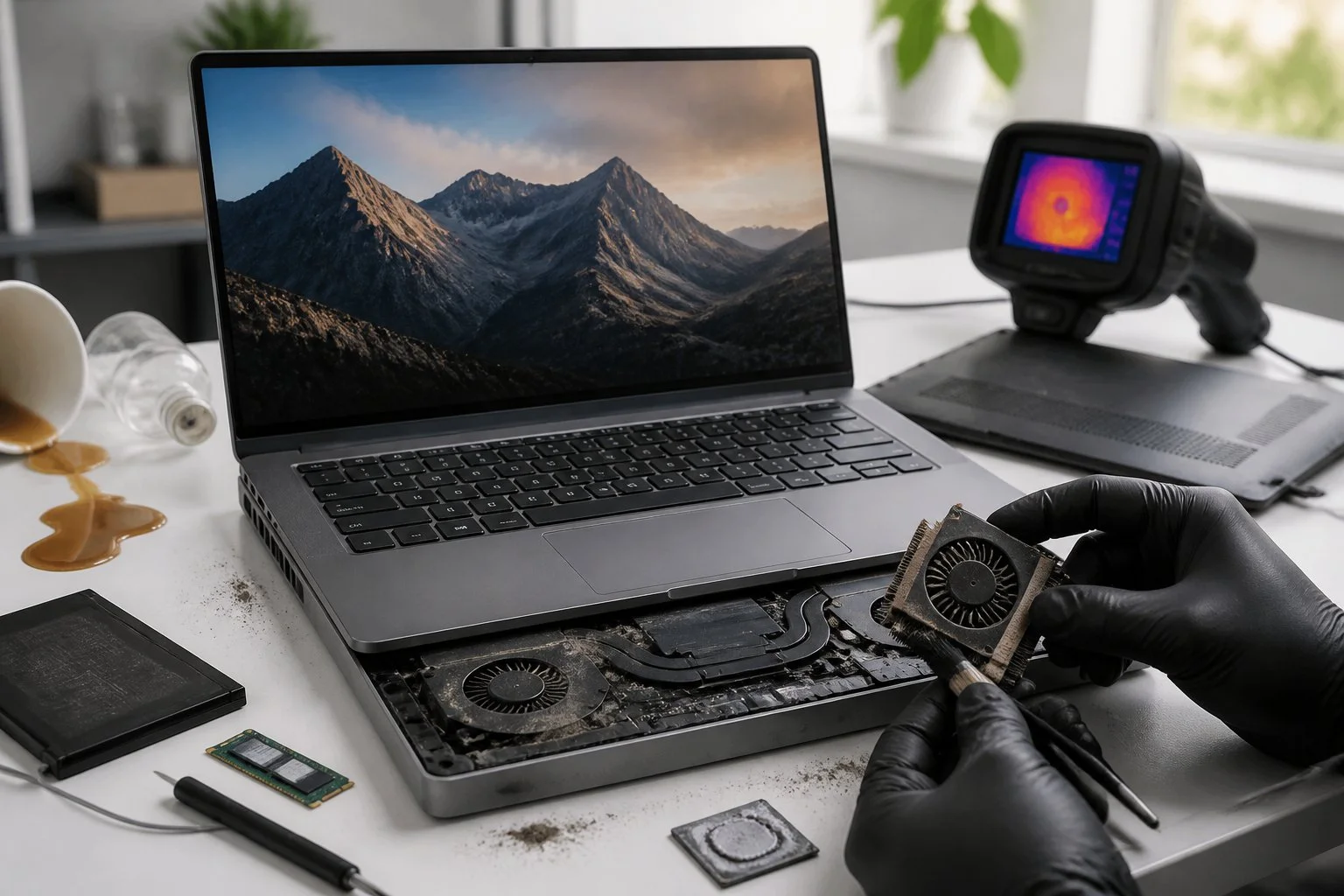
Laptops overheat because the internal cooling chain breaks down. Clogged heatsinks, weak fans, and degraded thermal compound are the causes that appear most often. The fix has to start inside, not underneath. What follows is a practical diagnostic workflow and a set of steps you can work through before paying for a repair, or replacing a machine that might cost very little to sort.
What thermal throttling actually means
Thermal throttling is the processor deliberately running slower to keep itself from overheating. It is not a crash, and it is not a bug. The chip is doing exactly what it was designed to do, just at the direct expense of performance.
Heat travels along a chain: chip surface, thermal interface material, heatsink fins, fan, exhaust vents, outside air. Degrade any one of those links, dried paste, dust-packed fins, a fan bearing giving out, and temperatures climb until the processor backs off. Some throttling under a sustained heavy workload is completely normal. What is not normal is throttling during light tasks, or consistent readings above 90 °C on a machine sitting at modest load. That points to a real fault worth tracking down.
Why Laptops Overheat: The 7 Real Causes We See in the Workshop
Laptops overheat when the internal cooling path breaks down. The most common causes are clogged heatsinks, failing fans, dried thermal paste, poor heatsink contact, power-delivery faults, chassis limitations, or blocked intakes.
1. Dust-clogged heatsink or intake vents
This is the most common finding in machines a few years old, particularly those used on carpets or near open windows. Heatsink fins bind together with dust and hair, severely restricting airflow. Remove the rear panel and you will often find a solid dust cake pressed flat against the fins. The fan spins freely, but air moves around the fins rather than through them, and temperatures climb accordingly. A clean heatsink can bring readings down within minutes. Short bursts of compressed air through the intake and exhaust vents, kept brief to avoid overspin on the fan bearings, is the minimum for a lasting result.
2. Failing or obstructed fan (bearing wear, broken blades, cable rub)
Grinding, chirping, or inconsistent spin at low speeds are the tell-tale signs. You will often hear the fault before any monitoring software flags it. A fan that stalls or vibrates moves far less air, and aggressive fan curve settings will only delay the inevitable. Replace the fan or service the bearing. Light lubrication rarely holds under sustained heat. Worth noting: genuine replacement fans for some models are genuinely difficult to source, and that scarcity, not the labour, is often the real constraint.
3. Dried or degraded thermal paste and poor thermal pads
Common in older machines, gaming rigs, and anything running sustained heavy workloads. Thermal paste dries out, opening microscopic gaps between the silicon die and the heatsink. During teardowns we regularly find compound that has turned crumbly or visibly separated, disrupting the heat path even when fans are running normally. Old paste can be considerably drier than it looks from the surface.
The fix is a quality re-paste and, where needed, replacement of low-grade thermal pads with manufacturer-equivalent parts. A professional re-paste using quality compound applied correctly is often one of the highest-impact repairs available for an ageing machine. iFixit's laptop thermal paste guides are a useful reference if you are weighing whether to tackle this yourself. Thermal throttling symptoms frequently disappear once it is done.
4. Poor mechanical contact (loose screws, warped heatsink, broken mounts)
Most often seen in laptops that were dropped or previously repaired carelessly. From the outside the device looks fine, but the heatsink is not seated flat against the die. Fresh paste will not help when contact pressure is uneven. Re-seat the heatsink, replace any missing or damaged mounting hardware, and apply the torque the design specifies. It is one of those jobs where a precise hand genuinely makes a measurable difference to the result.
5. High sustained voltage or failing power-delivery components
Machines with BIOS or firmware tweaks, failing voltage regulator modules (VRMs), or aftermarket chargers often show high idle power draw and hotter-than-normal power stages. The chip is being asked to work harder than it should, generating excess heat as a result. Start by confirming you are using the original OEM charger and reset BIOS settings to defaults. Beyond that, testing individual power rails requires specialist equipment and a technician working to specification. The remedy can range from a firmware rollback to component-level motherboard repair.
6. Heavy workloads on an inadequate cooling design
Thin-and-light laptops pushed through sustained gaming or video rendering present a structural problem, not a maintenance one. A machine running hot under load is not necessarily faulty. Sometimes the chassis was simply never designed to shed that much heat continuously. Practical options include adjusting workloads, conservative undervolting where firmware permits, or choosing a machine with a higher thermal rating for demanding tasks. Results vary by CPU generation, and undervolting can occasionally introduce instability if applied too aggressively.
7. Blocked intakes caused by placement on soft surfaces
When vents sit on the underside and the laptop rests on a blanket, pillow, or lap, intake is blocked before any component has started to fail. It is one of the most frequent behavioural causes of overheating, and also the easiest to overlook. Moving to a hard, flat surface or a laptop stand resolves it immediately. For persistent cases, taller rubber feet improve underside clearance without any permanent modification.
A 5-step diagnostic flow (the safe order before opening the case)
Work through these steps in order. The sequence separates external causes from internal faults, avoids unnecessary teardowns, and keeps your data and warranty intact. Jumping straight to disassembly is almost always the wrong move.
Step 1, External check (surface, placement, vents)
Look for blocked vents, soft surfaces underneath, and visible dust around the exhaust openings. A few short bursts of compressed air, kept brief to avoid overspin, then move the machine to a hard flat surface. That combination alone stops throttling in a surprising number of cases, and the machine never needs to be opened.
Step 2, Fan audit (listen, feel, observe behaviour under load)
Listen for grinding, uneven spin, or a fan that stays suspiciously quiet while the machine is clearly working hard. A fan utility confirms RPM readings, but your ear is usually sufficient. Some designs keep fans off at idle by design, so focus on behaviour during sustained load. A fan that rattles or fails to spin up needs attention straight away.
Step 3, Process audit (identify runaway applications)
Close heavy applications, then check Task Manager on Windows or Activity Monitor on macOS to confirm real CPU and GPU load. Use a monitoring tool such as HWiNFO or HWMonitor to log temperatures during idle and a five-minute stress or gaming session, and note peak figures alongside when slowdown or shutdown occurs. Background processes rarely cause overheating on their own; they amplify existing cooling weaknesses. Software investigation should always follow the physical checks, not precede them.
Step 4, Thermal paste assessment (age and condition)
If the laptop is more than two years old, suspect the paste. Do not open the chassis without anti-static precautions, and check paste texture and heatsink contact before committing to a replacement. Old compound can resemble grey dust and has typically stopped transferring heat long before anyone notices. A proper re-application uses quality compound and ensures the heatsink seats correctly, making a real difference to long-term temperatures. For teardown guidanceiFixit's laptop cooling guides are a sensible starting point.
Step 5, Power delivery checks
Confirm you are using the original charger and reset BIOS and power settings to defaults before going further. The wrong charger or a firmware misconfiguration can push temperatures higher than any mechanical cooling fault would. Checking the power stages inside the machine requires specialist tools and is best left to a technician. Getting the diagnosis right at this stage avoids a great deal of wasted part-swapping later.
What to say to a repair shop
Framing your request precisely reduces unnecessary work and inflated quotes. When you contact a workshop, say something along these lines:
"I need a diagnostic focused on thermal performance: full fan test, heatsink inspection, paste condition, and a power delivery check. Please itemise costs for cleaning, fan replacement, and re-pasting before any work begins."
That sets the scope, demands a quote upfront, and signals you understand the basic failure modes. Shops are considerably less likely to pad the bill when you ask for itemised estimates before authorising anything. Bring three pieces of information with you: your highest logged temperatures, when throttling or shutdown occurs (idle, video, or gaming), and any fan noises you have noticed.
Beginner fixes vs workshop repairs
Not every overheating fix requires opening the case. Knowing where the boundary sits lets you act quickly without risking warranty coverage or causing accidental damage.
What you can do today
External cleaning, surface changes, and closing heavy background software are all fair game. Short bursts of compressed air through the vents is about as far as most people should go without professional help. Do not open the case if you are unsure about static discharge precautions, or if the machine is still under warranty.
What the workshop does
A proper internal service means re-pasting the CPU and GPU with quality compound, replacing worn fans, correcting heatsink seating, and, where firmware allows, applying conservative undervolt settings. Undervolting can bring temperatures down noticeably without affecting everyday performance, though it is not available on every model and needs careful validation to avoid instability. Professional diagnostics also catch less obvious faults, such as a fan spinning but delivering poor airflow, or a heatsink that looks seated but lacks proper contact pressure. These are easy to miss without the right tools.
If repair costs are approaching 40–60% of the device's replacement value, or if the machine has a recurring motherboard fault with unavailable parts, replacement is often the more sensible option. Most machines that come in are not catastrophically broken. They have simply never been cleaned and are running three-year-old paste.
Common mistakes that make overheating worse
Using the laptop on beds, pillows, or soft surfaces
Soft surfaces block intakes entirely. Moving to a hard desk costs nothing and is the first thing to change.
Ignoring grinding or rattling fan noises
Noise is an early warning of mechanical failure. Note when it occurs and include that detail in your service request. Waiting until the fan stalls completely turns a straightforward replacement into something considerably more urgent.
Fitting cheap generic thermal pads or applying inadequate paste
Low-quality pads compress and fail quickly. Generic parts may look cheaper upfront but typically mean repeat visits. OEM-equivalent or workshop-grade materials are worth the difference in both longevity and thermal performance.
What to do next for an overheating laptop
Start with the basics: log your peak temperatures using HWiNFO or HWMonitor, note when throttling or shutdown occurs, and listen for whether the fan is audibly struggling. As a rough guide, idle temperatures often sit in the mid-30s to mid-50s °C, sustained load commonly reaches the 70s to 80s °C, and consistent readings above around 90 °C during light use may indicate a fault. Exact safe values vary by model and manufacturer.
If temperatures stay elevated after working through the diagnostic steps above, book a thermal diagnostic and ask for an itemised quote covering fan condition, heatsink cleaning, and paste state. Where repair costs approach 40–60% of the laptop's replacement value, or where a recurrent fault or unavailable parts are involved, replacement is often the more practical choice. Most overheating laptops, however, need neither an expensive repair nor a new machine. A clean and a re-paste usually does it.
Frequently Asked Questions
What is thermal throttling?
Thermal throttling is when your CPU or GPU deliberately slows itself down to prevent heat damage. Some throttling under sustained load is normal. If it happens during light tasks like browsing or editing documents, that usually points to a cooling fault worth investigating.
What are the most common laptop overheating causes?
Dust-clogged heatsinks, failing fans, dried thermal paste, poor component contact, and blocked vents account for the vast majority of cases. The seven causes covered above go into detail on each one.
Can a cooling pad solve laptop overheating?
Rarely. A cooling pad might trim a few degrees off surface temperatures, but it does nothing for a clogged heatsink or dried paste. It addresses the symptom rather than the fault, which is why plenty of people find the machine still runs hot despite using one.
What should I do before taking my laptop to a repair shop for overheating?
Blow short bursts of compressed air through the vents and place the machine on a hard, flat surface. Close background applications and check whether temperatures drop. If it still runs hot, note your peak readings and whether the fan sounds strained. That detail helps a technician diagnose the problem faster.
Is 90 °C too hot for a laptop?
Consistent readings at or above 90 °C during light use are a warning sign. Limits vary by model, but if you are regularly hitting those figures it is worth arranging a professional diagnostic rather than waiting for a sudden shutdown or component failure.
What information should I provide to a repair shop?
Ask for a thermal diagnostic covering fan function, heatsink condition, and paste state. Request an itemised quote for cleaning, fan replacement, and re-pasting before any work begins. Any reputable shop will provide that without hesitation.
Persistent overheating after a clean and repaste usually points to deeper issues, sometimes a failing GPU or VRM that needs proper motherboard-level repair. Pairing that with a modest SSD or RAM upgrade can also cut the workload the CPU is fighting through.
Adrian Wilson
Adrian Wilson is the founder of Plumstead Computer Clinic on Plumstead Common Road, South East London. He has been repairing laptops, PCs and MacBooks professionally since 2012, helping thousands of local homes and businesses fix everything from cracked screens to failed hard drives. He writes here to share honest, practical computer advice.
More about Adrian →